1. Sign up (2 min)
- Go to use.needt.app and create an account.
- Confirm your email. That unlocks 14 days of Pro, free. After that you can stay on Free or pick Pro or Lifetime on pricing.
- Pick a theme, dark or light. You can change it later.
Coming from Todoist or Notion? You can bring tasks over under Settings → Data → Import & export (Todoist CSV/backup, Notion Markdown & CSV export). Titles, due dates, projects and notes come with them. See Todoist and Notion.
2. Connect a calendar (3 min)
Needt plans around your meetings, so it needs to see them. Connect Google Calendar, Outlook/Microsoft 365, iCloud or any CalDAV calendar from Settings. Free includes one calendar; Pro is unlimited.
Connect the calendar that holds most of your commitments first. If work and personal are split, connect both during the Pro trial and see whether you need both. Setup notes: Google Calendar, Outlook, iCloud.
3. Add today’s tasks (5 min)
Type tasks the way you’d say them. Needt parses the estimate, deadline and project:
send the report, 30 min, by Friday #Clientsfix checkout bug, 45 min, today #Website, urgentSpanish lesson, 30 min #Spanish, low energybook plumber, 10 min #Home
The fields that matter most on day one: estimate (minutes) and deadline. Add priority (Low/Medium/High/Urgent) and energy (Low/Medium/High) when you know them. Subtasks and reminders can wait.
4. Auto-schedule (1 min)
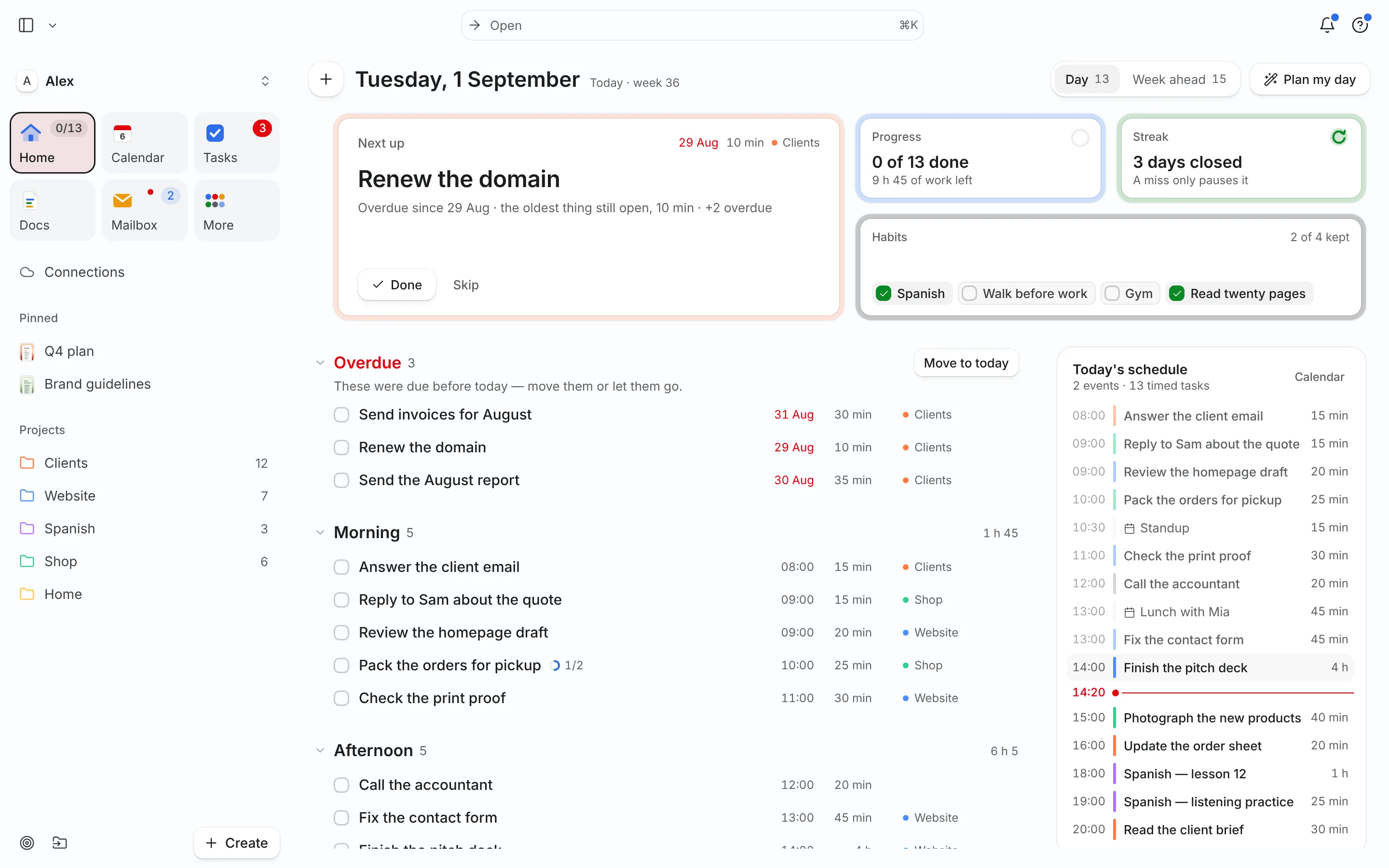
Let Needt auto-schedule your tasks. It places them into free time around your meetings, respecting deadlines, priority and energy. Check the result on Home (today) or in Calendar (day/week/month). Events and scheduled tasks appear in one view.
When a meeting moves or a task runs over, the rest of the day rebuilds and Needt shows what moved; you confirm. The free plan includes 15 auto-scheduled tasks a month. How it works in depth: auto-scheduling explained.
Worked example: Alex’s first Tuesday
Alex signs up Monday night, connects Google Calendar (stand-up 09:30–09:45, client call 11:00–12:00) and types five tasks. Tuesday’s plan after auto-scheduling:
| Time | Item | Source |
|---|---|---|
| 08:30–09:15 | Fix checkout bug #Website | Task (urgent, due today) |
| 09:15–09:25 | Book plumber #Home | Task |
| 09:30–09:45 | Stand-up | Google Calendar |
| 09:45–10:15 | Send the report #Clients | Task |
| 11:00–12:00 | Client call | Google Calendar |
| 13:00–14:30 | Homepage copy #Website | Task (high energy) |
| 16:30–17:00 | Spanish lesson | Task (low energy) |
At 10:40 the client moves the call to 14:00. The day rebuilds: homepage copy shifts to 11:00–12:30, and Alex confirms the change in one tap.
5. Try Ask (2 min)
Ask is the AI agent inside Needt. It can read your tasks and calendar and act on them. Good first prompts:
What’s overdue?
Re-plan my afternoon. I need to leave at 16:00.
Turn this email into tasks.
Free has a small monthly allowance; Pro and Lifetime include it. You can also bring your own AI key on any plan. The hosted agent uses providers that don’t retain or train on your data (security).
6. Install the app (2 min)
Needt installs as an app on Mac, Windows, iPhone, iPad and Android straight from the browser. On iPhone or iPad, open use.needt.app in Safari, tap Share, then Add to Home Screen. In Chrome or Edge on desktop, use the install option in the address bar or browser menu. Step-by-step for each device on the download page. Native iOS and Android apps are in development.
7. Optional: connect your AI assistant (3 min)
If you use Claude, ChatGPT, Cursor or another MCP client, connect it to Needt’s remote MCP server at https://mcp.needt.app/u/your-name. Sign in with OAuth, or create a personal token under Settings → Data → Personal API. Your assistant can then create tasks, list them, run the scheduler and reschedule.
Walkthrough for Claude: Connect Claude to your calendar. Full reference: MCP docs.
Your first week
Day one gets you a plan. These small habits over the first week make it stick:
- Days 1–3: add every new task with an estimate, even rough. Notice which estimates were wrong.
- Day 2: connect your mailbox (Gmail, Outlook or IMAP; up to 3 on Pro) and turn one email into a task.
- Day 3: create a project per area of life, like Clients, Website, Home, and try the Kanban or Flow view in Workspace.
- Day 4: start one Doc (meeting notes or a plan) and link it to a project. The meeting notes template is a good first page.
- Day 5: run a 15-minute review and plan next week.
First-week mistakes to skip
- Importing everything on day one. Bring in active work only. Old someday lists can wait.
- Tasks without estimates. They can’t be scheduled well. A rough guess is enough.
- Everything marked urgent. Use urgent for today-or-it-breaks only.
- Not connecting the calendar. Without meetings, the plan will double-book you.
- Skipping the weekly look. Fifteen minutes on Friday keeps the system honest; see weekly review.
Questions not covered here are in Help. Why we built Needt as one app instead of five: Five tabs, one plan.