

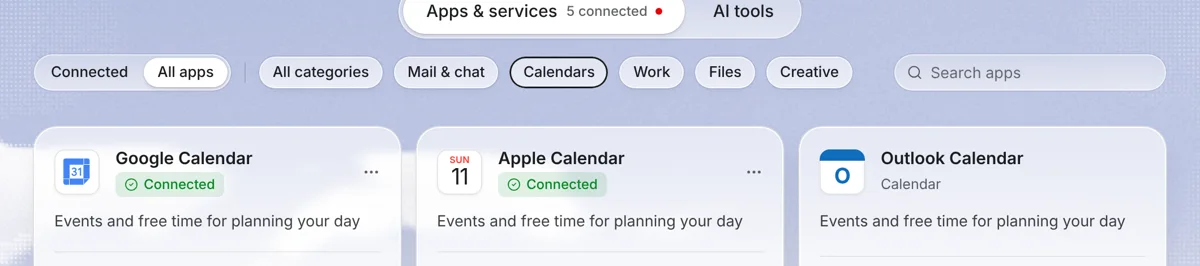
What the integration does
Needt reads the events on the Google calendars you connect and treats them as busy time. Your tasks, with their estimates, deadlines, priority and energy, get placed in the gaps. If a meeting moves, the rest of your day rebuilds and Needt shows what moved before you confirm.
Events and scheduled tasks sit in one view (day, week or month), so you stop flipping between a to-do list and a calendar tab.
Set it up
- Open Needt at use.needt.app and go to Settings → Calendars.
- Choose Google Calendar. A Google sign-in window opens.
- Pick your Google account and review the permissions Google lists, then allow access. Google explains this flow in its Google Account Help: share access with third-party apps.
- Back in Needt, pick which calendars to include. On Free you connect one; on Pro, as many as you like.
- Open Calendar in Needt. Your events appear next to your tasks.
Needt never sees your Google password. You can remove its access at any time from your Google Account's manage linked apps page.
What syncs and what doesn't
| Item | Direction | Notes |
|---|---|---|
| Events (title, time, busy status) | Google → Needt | Used to plan around. Needt does not change your existing events. |
| Scheduled task blocks | Needt → Google | Only when you choose to write them to a calendar. |
| Task details (subtasks, notes, energy) | Stay in Needt | Google gets a time block, not your whole task. |
| Guests, video links, RSVPs | Not managed | Handle invites in Google Calendar. |
In short: Google stays the home of your meetings. Needt is the home of your tasks and decides when they happen.
Which calendar should hold task blocks?
Many people create a separate Google calendar called “Needt” and write task blocks there. You can hide or color it in Google without touching your meetings, and turning it off never affects real events. If your team reads your work calendar to find meeting times, writing blocks there instead shows you as busy during focus work.
Example workflows
A meeting-heavy Tuesday
Alex has Google events at 09:00–09:30 (Client call) and 13:00–14:00 (Website review). Alex types “draft proposal, 90 min, by Wed #Clients” and “Spanish flashcards, 20 min #Spanish”. Needt places the proposal at 09:45–11:15 and the flashcards at 16:30–16:50.
When the call runs over
The client call moves to 10:00–10:45 in Google Calendar. Needt sees the change, shifts the proposal to 11:00–12:30, and shows you the move to confirm.
Ask the agent
In Ask, try “Re-plan my afternoon around the 15:00 call” or “What's overdue?”. For a manual approach, see time blocking in Google Calendar.
Limits by plan
| Free | Pro | |
|---|---|---|
| Connected calendars | 1 | Unlimited |
| Auto-scheduled tasks | 15 per month | Unlimited |
| Booking pages | 1 | Unlimited |
Every new account gets 14 days of Pro after email confirmation, free. Add a card only if you keep Pro. Details on pricing.
Troubleshooting
- A calendar is missing from the list. Check you signed in with the Google account that owns or subscribes to it. Shared calendars must be visible in that account first.
- “Access blocked” or an admin message. Your Google Workspace admin may restrict third-party apps. Ask them to allow Needt, or connect a personal account.
- Events stopped updating. You may have removed Needt's access or changed your password. Reconnect in Settings → Calendars.
- Tasks land on top of all-day events. All-day events are often marked “free” in Google. Set them to “busy” if you want Needt to avoid them.