
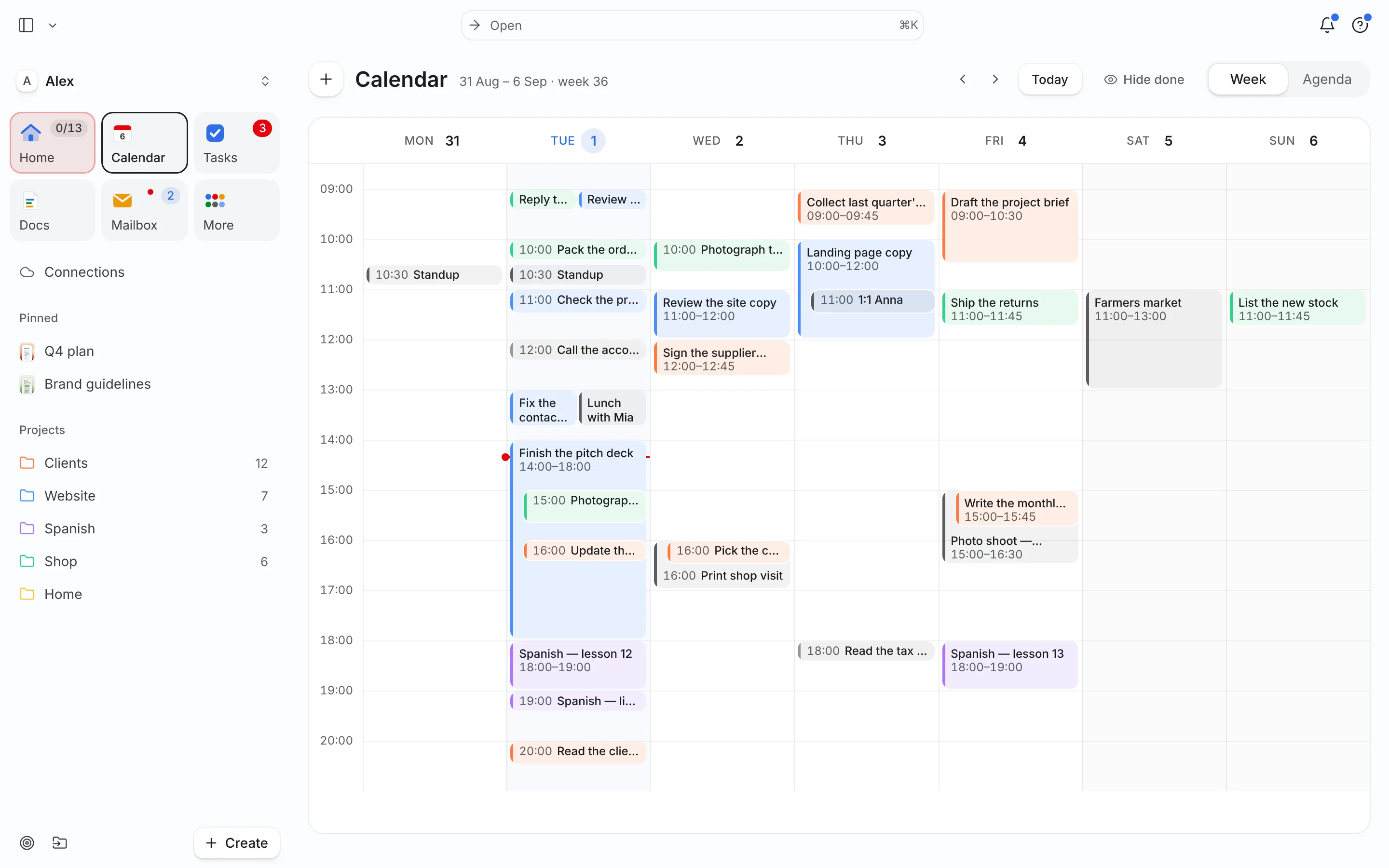
How auto-scheduling works
Under the marketing, every auto-scheduler does roughly the same four things:
- Read the walls. It pulls events from your connected calendars and your working hours. Everything else is free time.
- Read the tasks. Each task needs a duration estimate. Deadlines, priority and sometimes energy level tell the scheduler what goes first.
- Place. It fits tasks into free slots: urgent and deadline-bound first, high-energy work where you’ve said your energy is high, small tasks into small gaps.
- Rebuild. When an event moves, a new meeting appears or a task runs over, it re-runs placement for the rest of the day or week.
The “AI” part varies. Some tools use classic constraint solving; some add a language model so you can type “move my writing to tomorrow morning” instead of dragging. Both are useful. Neither knows your priorities better than you do.
Set it up so it actually works
- Connect every calendar that holds commitments. Work, personal and shared family calendars. A scheduler that can’t see your 18:00 pickup will happily book work there.
- Set real working hours. If you stop at 17:30, say so. Otherwise the plan will look fine and feel terrible.
- Estimate every task, then pad. The scheduler is only as honest as your estimates. Because of the planning fallacy, add 25% to new kinds of work. A 60-minute guess becomes 75.
- Use deadlines for real deadlines only. If everything is due Friday, nothing is. Use priority for “important but no date”.
- Split anything over two hours. “Write report — 6 h” is hard to place. Three 2-hour chunks fit real gaps.
- Review once a day, briefly. Look at the plan for 2–3 minutes in the morning. Accept, swap one thing, go.
Worked example: Alex’s Tuesday, before and after
Alex has 6 tasks and 3 meetings (09:30 stand-up, 11:00–12:00 client review, 15:00–15:30 call). Working hours: 08:30–17:30. Tasks: Clients proposal (90 min, due Wed, high energy), Website bug fix (45 min, due today), invoices (20 min), Shop restock order (30 min), Spanish practice (30 min, low energy), Home: book plumber (10 min).
| Slot | Placed task | Why the scheduler put it there |
|---|---|---|
| 08:30–09:15 | Website bug fix | Due today, needs focus |
| 09:15–09:25 | Home: book plumber | Fits a 10-min gap |
| 09:45–11:00 | Clients proposal (part 1, 75 min) | High energy, morning |
| 12:45–13:00 | Clients proposal (part 2, 15 min) | Finishes before Wed deadline |
| 13:00–13:20 | Invoices | Small admin task |
| 13:30–14:00 | Shop restock order | Medium priority |
| 16:00–16:30 | Spanish practice | Low energy, late day |
At 11:00 the client review is moved to 13:00. The scheduler rebuilds: invoices and the restock order shift to 11:00–11:50, proposal part 2 goes to 14:00. Alex sees a short list of what moved and confirms. Total time spent re-planning: under a minute.
Manual time blocking vs. auto-scheduling
| Manual blocking | Auto-scheduling | |
|---|---|---|
| Setup | None; any calendar works | Connect calendars, add estimates |
| Daily effort | 10–15 min to place blocks | 2–3 min to review the plan |
| When a meeting moves | You drag every affected block | Plan rebuilds; you confirm |
| Control | Total | High, if changes are shown before applying |
| Best for | Stable days, few projects | Many meetings, many projects, frequent changes |
They aren’t opposites. Many people block their one or two most important sessions by hand and let a scheduler place the rest. If you are new to the underlying idea, start with time blocking and timeboxing.
What auto-scheduling can’t do
- It can’t choose your priorities. If you mark six things urgent, it will schedule six urgent things and the week will still be too full.
- It can’t fix bad estimates. A 30-minute guess for a 2-hour task breaks every plan built on it.
- It can’t see what isn’t in the system. Errands in your head, a colleague’s verbal request, a calendar you didn’t connect.
- It can make you passive. If you stop looking at the plan, you stop noticing when it is overloaded. A short daily look keeps you in charge.
- Constant reshuffling can feel unstable. Good schedulers show what moved and ask you to confirm instead of silently moving things.
Other tools approach this differently: Motion leans hard into full automation, Reclaim focuses on protecting habits and focus time in Google Calendar, Sunsama keeps you planning by hand with guidance. See the honest comparisons for Motion, Reclaim and Sunsama.
Auto-scheduling in Needt
- Connect a calendar (Google, Outlook/Microsoft 365, iCloud or CalDAV).
- Add tasks with the fields the scheduler uses: estimate, deadline, priority (Low/Medium/High/Urgent) and energy (Low/Medium/High). Typing
restock order, 30 min, by Thursday #Shop, low energysets them in one line. - Auto-schedule. Tasks get slots in free time around meetings. They appear in Calendar and on Home next to your events.
- Confirm changes. When something moves or runs over, Needt rebuilds the rest of the day and shows what moved before you accept.
The free plan includes 15 auto-scheduled tasks a month; Pro is unlimited (see pricing). You can also drive the scheduler from Ask or from an assistant over MCP:
Schedule everything due this week, but nothing before 09:00 and nothing on Friday afternoon.
The client review moved to 13:00. Rebuild my day and tell me what moved.