

What the import does
This is a one-time move, not a live sync. Needt reads your Todoist file, creates the tasks, and keeps your project structure. After that, Needt can give each task an estimate and a slot in your calendar, which Todoist doesn't do on its own. Todoist still has stronger collaboration and quick-capture integrations; see Needt vs Todoist and Notion for an honest comparison.
Step 1: export from Todoist
Option A: one project as CSV (all Todoist plans)
- Log in at todoist.com and open the project.
- Click the three dots at the top right and choose Manage data.
- Select Export as CSV. The file downloads.
Source: Todoist Help: import or export a project as a CSV file.
Option B: everything as a backup (Todoist Pro and Business)
- Click your avatar, then Settings → Backups (web or desktop app).
- Click Download next to the newest backup. It's a ZIP with one CSV per active project.
Source: Todoist Help: download or restore backups.
Step 2: import in Needt
- Open Settings → Data → Import & export and choose Todoist.
- Upload the CSV or the backup.
- Check the preview, then import. Projects appear in Workspace.
- Add estimates to the tasks you want scheduled, then run the scheduler.
Prefer chat? An assistant connected over MCP can also move tasks across.
What's kept and what isn't
| Todoist data | In Needt | Notes |
|---|---|---|
| Task titles | Kept | |
| Due dates | Kept | |
| Projects | Kept | Become Needt projects. |
| Descriptions / notes | Kept | |
| Comments and attachments | Not imported | Save important files before you cancel Todoist. |
| Completed tasks | Not imported | Todoist's CSV export doesn't include them. |
| Recurring rules | Check after import | Todoist's CSV doesn't keep a recurring task's start date. |
A first week after switching
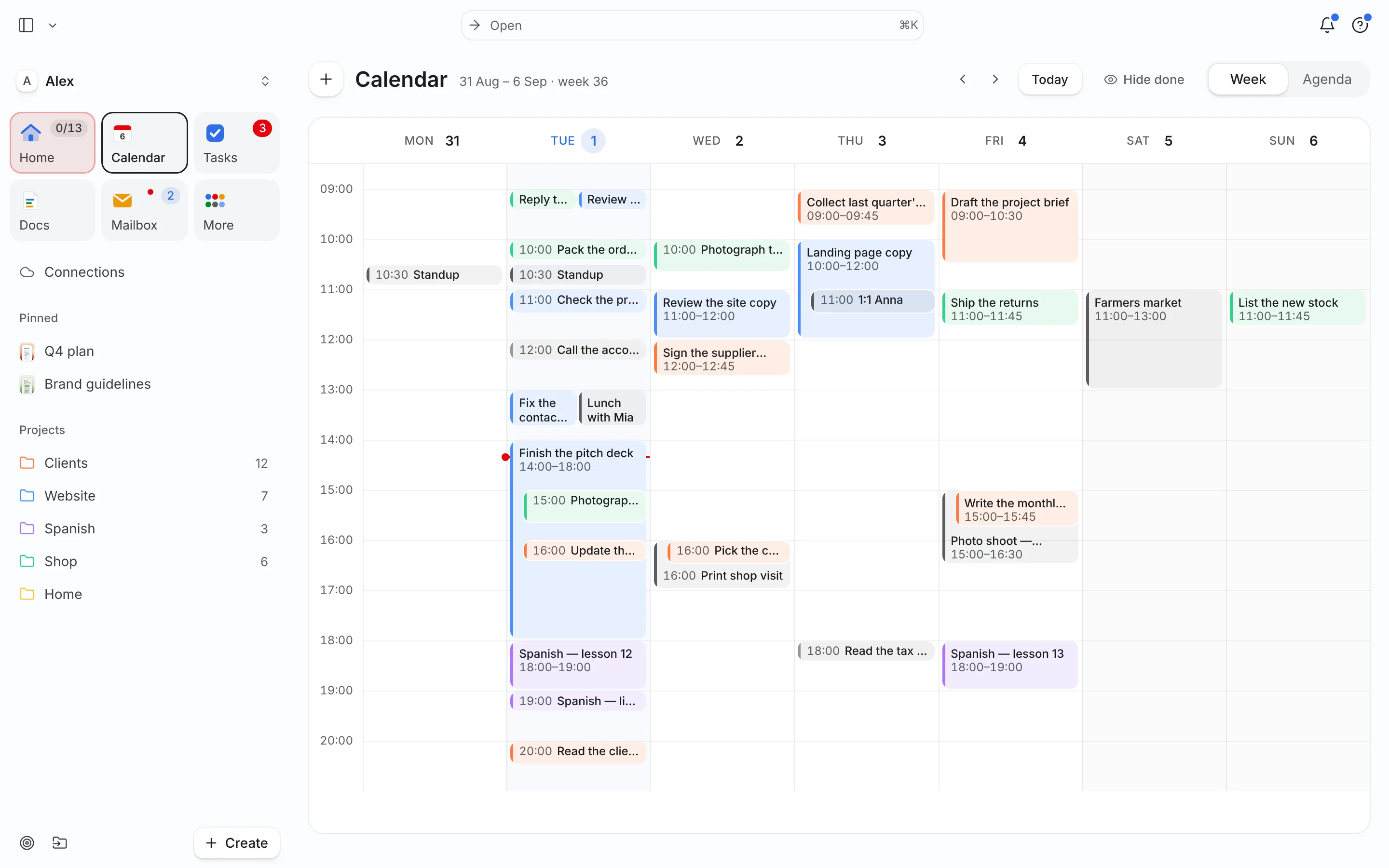
Alex imports the “Clients” and “Home” projects on Sunday evening. 40 tasks come in. Alex adds estimates to the 12 tasks due this week, for example “invoice March, 15 min” and “plan kitchen shelf, 45 min”, and runs the scheduler. Monday's plan shows them around the 10:00 stand-up. The rest wait in the list until they have a date.
Before you cancel Todoist
- Download any attachments you want to keep. They don't come across.
- Copy important comment threads into the task notes in Needt.
- Open every recurring task in Needt and confirm the pattern and next date.
- Keep your Todoist export file somewhere safe for a few weeks, in case you need to look something up.
- Run Needt for a full week before you cancel, so you know nothing is missing.
Limits by plan
Import is available on every plan. Free auto-schedules 15 tasks per month; Pro is unlimited. With the 14-day Pro trial you can import and schedule everything during the switch. See pricing.
Troubleshooting
- No Backups tab in Todoist. Backups are a Todoist Pro and Business feature. Export each project as CSV instead.
- Some tasks are missing. Completed tasks aren't in the CSV. Archived projects aren't in backups; unarchive them and export again.
- Dates look wrong. Check that your Needt time zone matches Todoist's, then re-import that project.
- Imported a file twice. Select the duplicates in Workspace and delete them; they go to trash.