Connect Needt to VS Code
Step-by-step: give VS Code your tasks, calendar and schedule over MCP. Give Copilot’s agent mode your tasks and schedule.


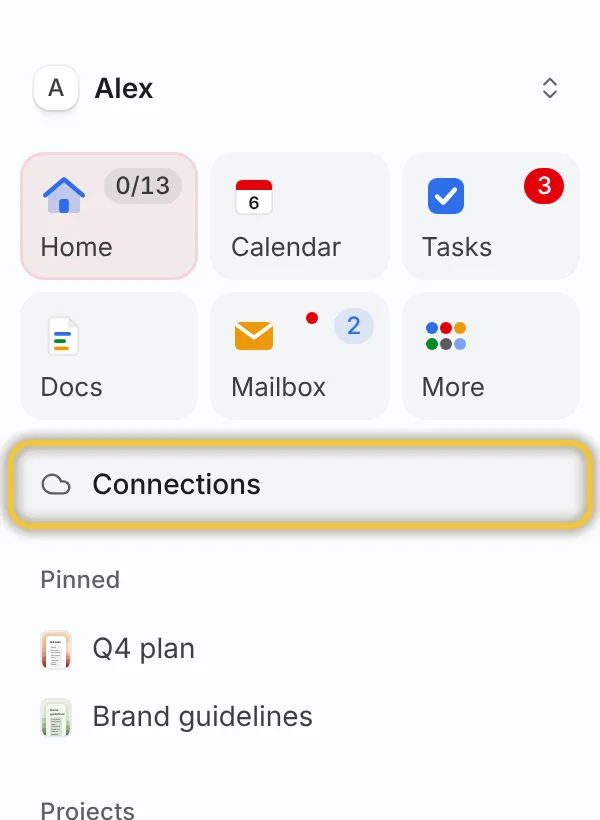
Open Connections in Needt
It’s in the sidebar, under Home, Calendar and Docs. On a phone, open the menu and tap Connections.
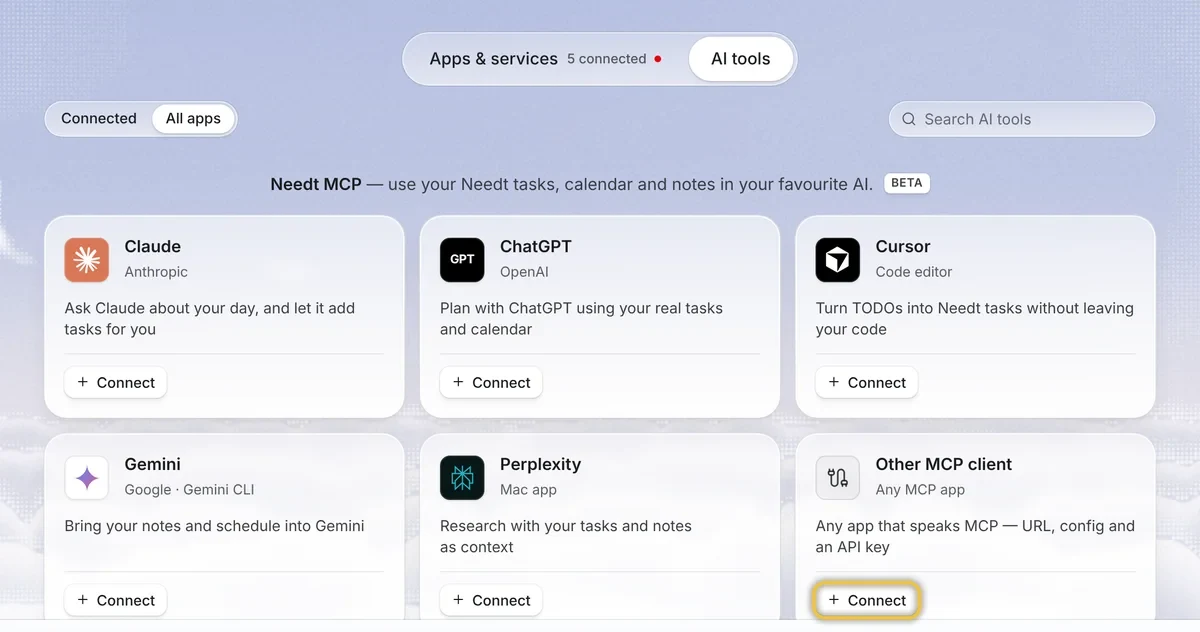
Switch to AI tools and click Connect
Pick Other MCP client — it works for VS Code.
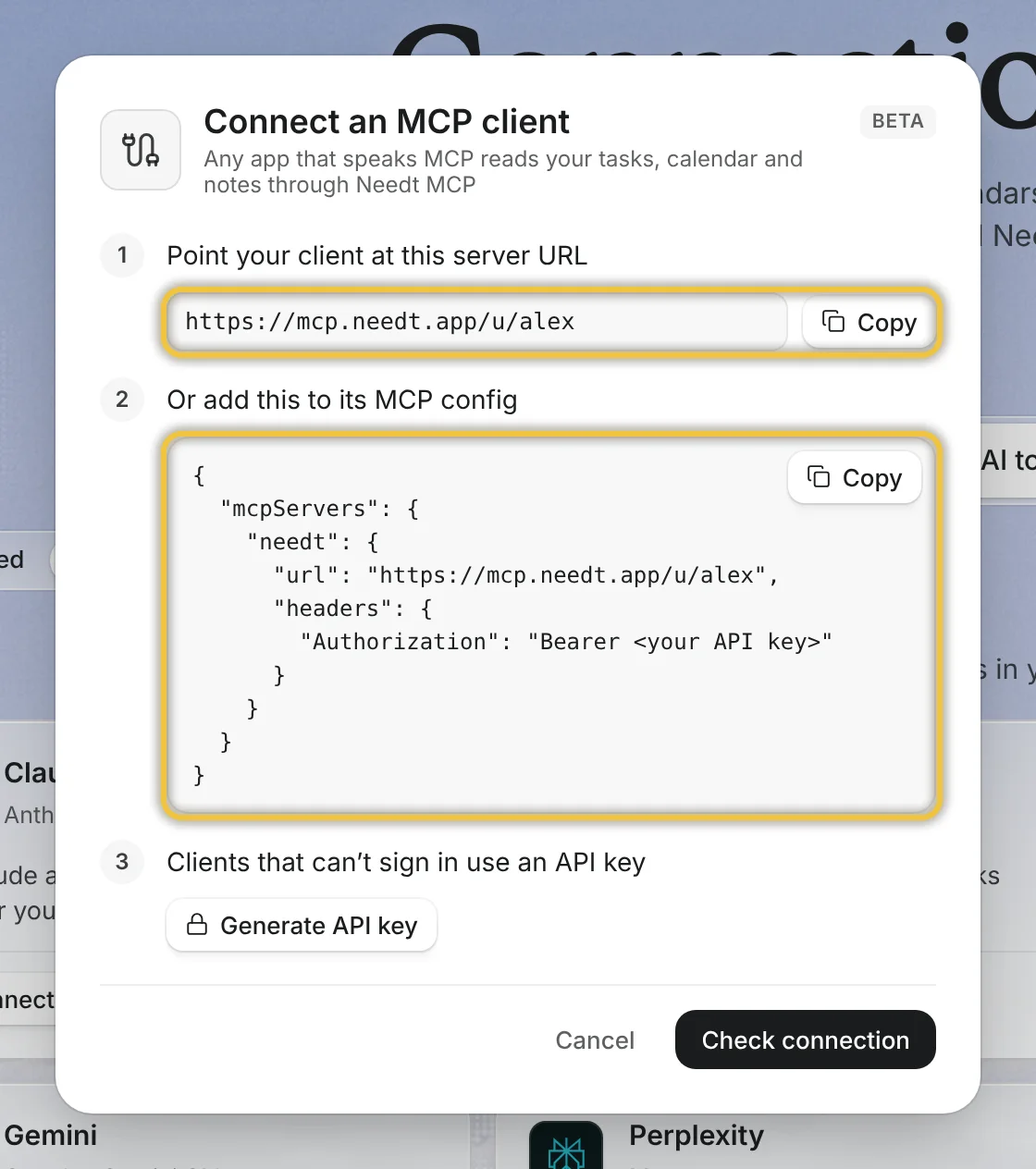
Copy the server URL or config
Each account gets its own address, like https://mcp.needt.app/u/your-name. Copy yours here and keep the window open — you’ll come back to press Check connection.
Add it in VS Code
Run MCP: Add Server from the Command Palette and choose HTTP, or add it by hand. VS Code opens the Needt sign-in on first use.
{
  "servers": {
    "needt": { "type": "http", "url": "https://mcp.needt.app/u/your-name" }
  }
}
With a token, let VS Code ask for it once and keep it out of the file:
{
  "inputs": [
    { "type": "promptString", "id": "needt-token", "description": "Needt token", "password": true }
  ],
  "servers": {
    "needt": {
      "type": "http",
      "url": "https://mcp.needt.app/u/your-name",
      "headers": { "Authorization": "Bearer ${input:needt-token}" }
    }
  }
}Check the connection
Back in Needt, press Check connection. It turns green once your client has talked to Needt. Then ask something real:
Click an example to copy the prompt.
Read and plan
Create tasks with estimates and deadlines, list what’s open, run the scheduler, re-plan after changes, manage projects, calendars and events.
All toolsDeletes ask twice
A delete only goes through with an explicit confirmation, and lands in Needt’s trash. Revoke any connection in Connections.
How it’s safeTroubleshooting
401 means the token is missing or revoked. No tools? Remove the server, add it again, restart the client.
More fixes